
Embedding a chat widget on a membership site has no universal completion time: the work is finished when the widget loads on the intended pages, answers from approved sources, and passes visitor testing. Adding the embed is only the installation step; checking member access, citations, and unanswered questions belongs in your launch plan too.
- How long does it take to embed a chat widget on a membership site? Separate installation from launch testing.
- HelpShelf suits creators who need a chat widget with source-grounded answers, citations, and lead capture.
- Check public and member-only content separately before publishing a membership chatbot.
- Launch after the checks pass, not when the chat bubble first appears.
How long does it take to embed a chat widget on a membership site?
Treat embedding as a sequence of checks, not a fixed-minute promise. Your endpoint is a working conversation on the live membership site, not an embed saved in an editor.
HelpShelf is best for course creators, coaches, and community owners who need a chat widget that answers from their own content with citations and captures leads. That fit does not remove the need to check placement, content boundaries, and answer behavior before launch.
Use this sequence for a 2026 installation:
- Confirm placement. Identify the public or member-facing pages where visitors should see the widget, then confirm how those pages accept an embed.
- Prepare sources. Choose the material the widget should use and separate buyer-facing information from restricted member content.
- Add the embed. Follow the widget provider’s current instructions for the page or site you control.
- Test conversations. Ask ordinary questions, unsupported questions, and questions about restricted material.
- Publish and recheck. Open the published site in the relevant visitor state and confirm the complete experience.
The useful distinction is between installation and readiness. Installation proves that the widget appears; readiness proves that it behaves appropriately where you placed it.
Why this matters
A prospective member asks about your coaching program at 11pm. You want the answer to come from the published program information, not from a guess about what you probably offer.
Now change the visitor: an existing member asks where to find a lesson. The widget’s job is different, and the answer needs to respect the member’s access. A visible chat bubble does not prove either conversation works.
For a 2026 launch, define the acceptable answer before installing the widget. You will spend less effort debating whether setup is finished when the finish line is explicit.
Public pages: test buyer questions
Best for: creators who want to answer pre-sale questions before someone joins. Start with the pages where a visitor decides whether the membership fits their needs.
Choose sources that explain the actual offer: published curriculum, audience, participation requirements, and policies. Include a topic only when your own material addresses it. A widget should not fill gaps by inventing access terms, discounts, or outcomes.
The advantage of this scope is a clear question boundary. A visitor can ask about the published membership without needing access to the member library. The limitation is equally clear: pre-sale information cannot establish what is happening inside an individual member’s account.
For your 2026 public-page test, ask a question the material answers and another it does not. If the page explains who the program serves but says nothing about private coaching, the widget should not promise private coaching.
Member pages: test access as well as answers
Best for: community owners who want members to find answers in approved membership content. Placement inside a member area changes what you must verify before calling the installation complete.
A member-facing widget needs more than an answer that sounds relevant. Check whether the cited material is appropriate for that visitor and whether the visitor can open it. Keep the distinction between where the widget appears and what information it is permitted to use.
The advantage is direct access to help while a member is working through content. The limitation is that a widget embedded behind a login does not, by itself, prove that every source has the correct access boundary.
For a 2026 member-area launch, test from the member’s view rather than relying on the administrator’s session. An administrator’s access is not a useful substitute for checking the experience you intend members to have.
| Placement | Best for | Main advantage | What still needs testing |
|---|---|---|---|
| Public pages | Pre-sale membership questions | Answers sit near the buying decision | No disclosure of restricted member content |
| Member pages | Questions about approved learning content | Help sits beside the member’s work | Source access and usable citations |
| Both areas | Separate buyer and member journeys | Questions receive context-appropriate help | Content boundaries across visitor states |
Why embedding time varies
The work changes with the site and the intended conversation. Check these factors before setting an installation deadline:
- Placement permissions. Confirm that you can edit the relevant page or site settings. If someone else owns that access, the task includes coordination.
- Page scope. Decide whether the widget belongs on a public page, inside the membership, or in both places. Each intended context needs its own check.
- Source readiness. Select current, approved material. Conflicting policy text needs a decision before you ask a widget to quote it.
- Content boundaries. Separate information that a prospective buyer can see from content intended only for members.
- Answer testing. Include unsupported requests, not just questions with obvious answers. A correct refusal is part of a working installation.
- Lead capture. If collecting inquiries is part of the setup, test what the visitor submits and what happens afterward.
Do not compress these tasks into an unsupported setup-time estimate. A clean embed with unresolved source access is not a finished membership installation.
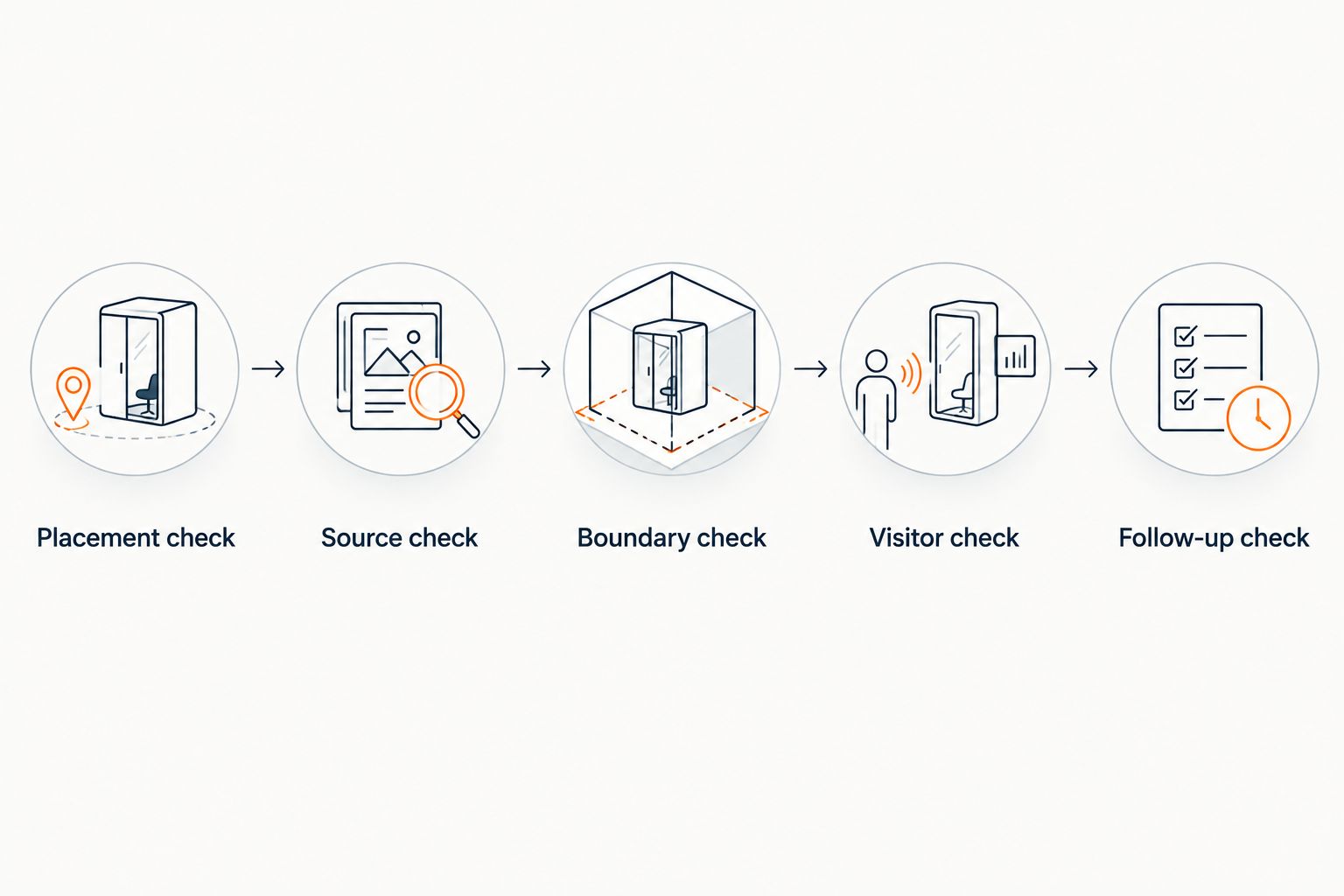
Use a launch checklist instead of watching the clock
Run the following checks on the published page. Keep a short record of the question, expected behavior, and actual result so you can distinguish an installation problem from a content problem.
Placement check
Open the page as the intended visitor. Confirm that the widget appears where you expect and that you can open, use, and close it without blocking the page’s main action.
Test the experience on the devices your members use. The objective is practical: a visitor should still be able to read the page, reach navigation, and complete the intended task.
Source check
Ask a question answered directly in your approved material. Follow the citation rather than accepting a plausible sentence as proof.
For example, if your published curriculum explains a lesson’s subject, ask what that lesson covers. The citation should support the actual answer, not merely point to a broadly related page. The guide to citing sources from your own content covers that distinction.
Boundary check
Ask about something that is not published. Use an unpublished discount, a refund exception, or an income promise as a test request—not as an offer you make.
An appropriate example response is: I can only quote what’s published. The published material does not establish that exception. Treat this as a test pattern, not a promise that every widget uses those exact words.
Visitor check
Repeat the relevant conversation from a logged-out view and a member view. Look for differences that match your intended content boundaries.
If a public visitor receives restricted information, pause the launch. If a member receives a citation they cannot open, fix the source or the intended answer path before marking the setup complete.
Follow-up check
When the widget collects an inquiry, submit a test inquiry yourself. Check the information collected and confirm the next step actually works.
Do not describe a callback, response deadline, or personal follow-up unless you have an operational process for it. A lead-capture form is not evidence that someone will respond within a particular period.
These checks follow the conversation from visibility to follow-up. A failure tells you which part to fix; it does not automatically mean the embed itself is broken.
Can I install a membership chat widget without a developer?
Developer involvement depends on the installation method and your permission to change the site. Check the provider’s current instructions alongside the controls available on the exact pages you want to use.
Do not assume that managing course content also gives you permission to add third-party code. If the installation instructions require settings you cannot access, give the site owner a defined task: the intended placement, the approved embed instructions, and the checks required after publishing.
Keep content decisions with the person responsible for the membership. A developer can help with installation without deciding which refund language or member materials the widget should use.
Does adding the embed finish the chatbot setup?
Adding the embed finishes placement, not the entire chatbot setup. The widget still needs approved sources and tested behavior for the conversations you intend it to handle.
Consider a buyer asking whether your membership includes personal feedback. If the source material does not say, the right next move is to clarify the published offer or decline to confirm—not to generate a reassuring answer.
Separate the fixes. A widget that does not appear needs an installation check; a widget that cites outdated information needs a source review. That distinction keeps troubleshooting focused.
Should I launch on every membership page at once?
Start with a defined page scope when you want a clear launch test. Choose the visitor journey you can verify, then expand only after the same checks pass in the additional context.
A public sales page and a restricted lesson page do not have the same job. Publishing everywhere at once combines placement questions, access questions, and answer-quality questions into a single troubleshooting task.
For a 2026 rollout, record where the widget is intended to appear and what each placement should answer. That record becomes useful again when you change the membership structure or published policies.
FAQ
How many minutes should I allow to embed a chat widget on my membership site?
Use the installation steps and launch checks to set your schedule rather than assuming a universal minute count. Confirm page access, prepare approved sources, add the embed, and test the published visitor experience.
What is the difference between embedding and setting up a chatbot?
Embedding places the widget on the site; setup also includes source selection, answer boundaries, and conversation testing. A visible chat bubble confirms placement, not answer readiness.
Can I use the same chat widget for buyers and members?
Treat buyer and member conversations as separate test contexts, even when evaluating a shared widget. Verify what each visitor can ask, which sources support the answers, and whether restricted content stays restricted.
What does HelpShelf do for membership creators?
HelpShelf provides an AI-powered chat widget that answers pre-sale and support questions using a creator’s own content, with cited sources and lead capture. Its stated audience includes course creators, coaches, and community owners.
What should a membership chatbot say when a policy is not published?
A membership chatbot should not invent a policy or exception. A useful refusal pattern is: I can only quote what’s published, followed by a clear explanation of what the available material does and does not establish.
How do I know whether a citation is useful?
A useful citation supports the specific answer and is accessible to the intended visitor. Open it from that visitor’s context rather than checking only from an administrator account.
Should I test lead capture before publishing the widget?
Test lead capture before treating the installation as complete if collecting inquiries is part of your setup. Submit a test inquiry and verify the next step instead of assuming that displaying a form proves the follow-up works.
One last thing
Your most useful launch question is one the widget should refuse to answer. An ordinary curriculum question tests retrieval; a request for an unpublished exception tests whether the answer stays inside the source material.
When evaluating HelpShelf, use both tests. A grounded answer and a clear refusal serve the same purpose: keeping the conversation tied to what you actually publish.