Instead of answering the same course questions manually, connect HelpShelf to Bubble using the widget installation instructions supplied for your account, then test its answers against approved source content. Start with a single page: confirm the supported installation method before adding code, and check citations and lead capture before publishing.
- To connect HelpShelf to Bubble, confirm the supported installation method before editing your app.
- Use approved course content for cited answers; keep private member material out of public sales chat.
- Test citations, unsupported questions, and lead capture separately before publishing.
- A visible chat widget does not prove that Bubble permissions or content updates are connected.
Why this matters
A prospect opens your course app at 11pm and asks whether the program covers their situation. You have the answer in your curriculum, but they should not need to wait for your next inbox check to find it.
HelpShelf is a source-grounded chat widget for creators who need cited pre-sale and support answers. It answers from your own content and captures leads. HelpShelf is best for course creators, coaches, and community owners who need answers tied to their published material.
The connection has separate jobs: display the widget, supply the right content, and handle follow-up. Completing the first job does not prove the others work. For your 2026 launch, treat each as a separate acceptance check.
Before you start
- Get access and installation materials. You need permission to edit and publish the Bubble app, access to the chat account, and the exact installation instructions and widget code supplied for that account. Confirm the supported Bubble placement through contact before changing the app.
- Prepare approved sources and a follow-up destination. Choose the course descriptions, curriculum explanations, and support policies the widget should answer from. Decide who receives follow-up requests and what information visitors should provide.
- Resolve the permission boundary first. A Bubble login does not, by itself, establish permissions inside a separate chat service. Do not supply private lessons or member records to a public-facing source collection. Confirm access controls before adding restricted material.
Stop before installation if the supported code placement or content-access model is unresolved. Do not substitute a guessed script, an unrelated plugin, or an account identifier copied from another project.
Source scope
The first configuration unit is the answer boundary, not the embed. A working widget that quotes the wrong course is still a failed setup.
- Write down the audience for the first page: prospective buyers or enrolled members. Keep that audience consistent throughout this initial setup.
- Select the approved material for that audience. For a public sales page, use public course descriptions, prerequisites, curriculum summaries, and published policies.
- Remove conflicting versions. If your 2026 course description differs from an older document, resolve the conflict before making both available to the widget.
- Define how unsupported questions should be handled. A suitable proposed response is: “I can only quote what’s published. That detail needs a reply from the course owner.”
- Prepare 6 test questions: curriculum coverage, prerequisites, lesson location, a policy question, an unpublished exception, and a follow-up request. Write the expected source or refusal beside each question.
Expected result: you have a defined audience, an approved source set, and a written answer key. You can explain what the widget should answer and what it must leave to a person.
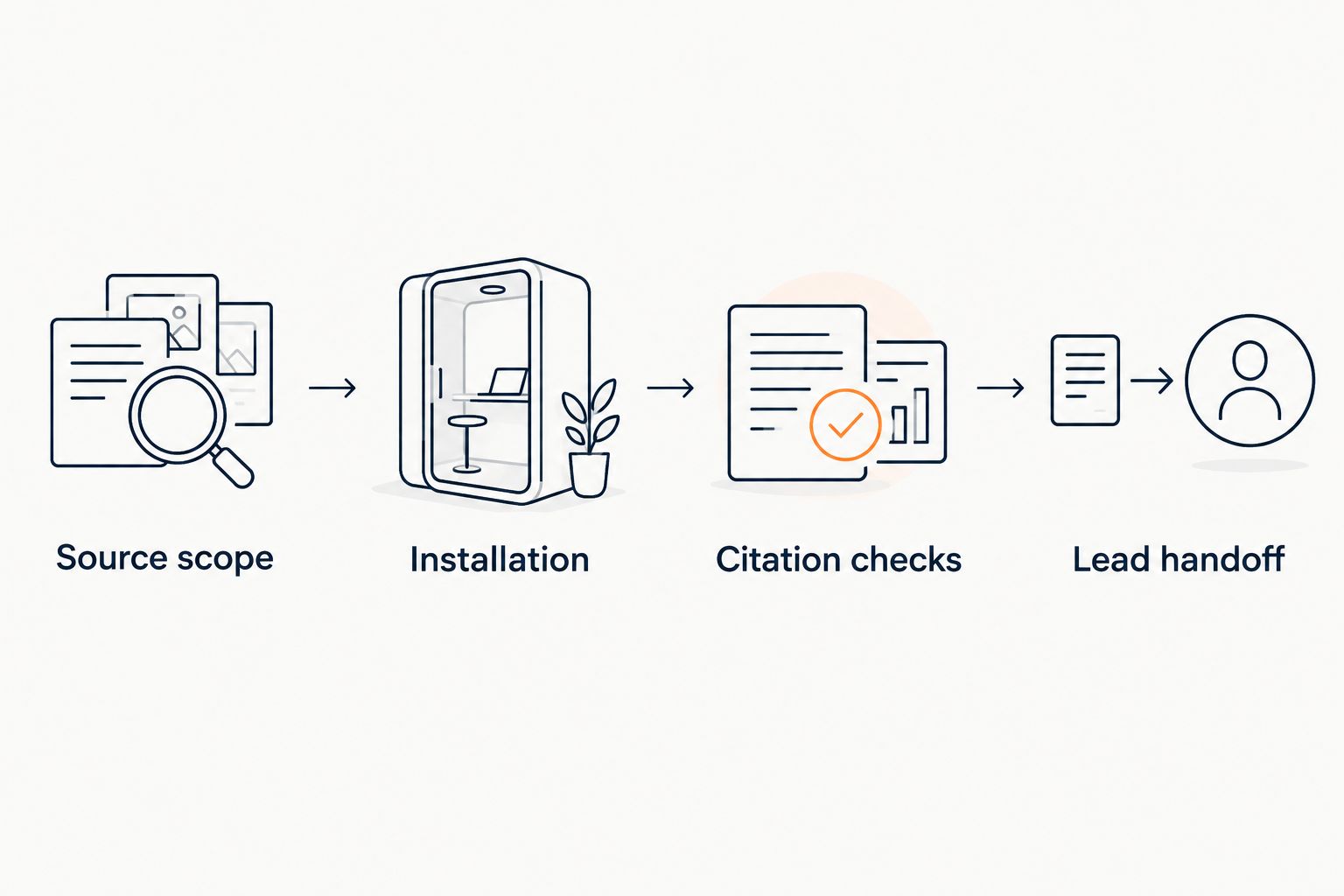
Use this sequence as your setup checklist: Source scope, Installation, Citation checks, and Lead handoff. Do not mark the connection complete just because the launcher appears.
Installation
Use the exact installation instructions provided for your account. The following Bubble header route applies only when those instructions explicitly call for a site-wide header script; it is not a substitute for confirming the supported method.
- Open the Bubble editor and identify 1 test page where you can inspect the chat without exposing restricted content. Record the page and the intended audience.
- Read the supplied snippet instructions. Determine whether the code belongs in the document header, a page element, or another specified location. Do not move code between locations merely because it fails to display.
- For a confirmed header installation, open Settings, then SEO / metatags, and locate Script/meta tags in header. Preserve existing code and add the supplied snippet without changing its identifiers or script address.
- If the supplied instructions require a different placement, follow that route instead. Do not paste the same snippet into the header and a page element as competing attempts.
- Open Preview and inspect the intended page. Check that the launcher opens, the conversation area remains usable, and the widget does not cover an essential navigation or checkout control.
- Repeat the visual check at a narrow browser width. Keep the app unpublished until both the installation check and the answer checks below pass.
Expected result: the widget opens on the intended test page without duplicate launchers or blocked controls. This establishes that the installation loads; it does not establish content access, citation quality, or lead delivery.
Keep the supplied installation instructions with your 2026 release notes. Record the placement you used so a later editor does not install a second copy elsewhere.
Citation checks and lead handoff
HelpShelf’s cited-answer workflow needs an answer test, not just a successful page load. A citation should let the reader check the statement it supports.
- Ask the curriculum question from your answer key. Compare the answer with the approved source, then open the citation as the intended visitor.
- Ask the policy question. Check that the answer preserves the published conditions rather than turning them into a broader promise.
- Ask for an unpublished exception. Use a test request such as asking for an exception to the published refund policy. The acceptable outcome is a refusal or human follow-up, not a new policy.
- Run the checks in 2 browser sessions: a signed-out visitor session and an authorized member session. A creator’s logged-in browser is not a valid substitute for either audience.
- Test lead capture with a clearly labeled test submission. Verify that the submitted contact details and question reach the destination specified by your actual setup instructions.
- Publish through your normal Bubble release process only after these checks pass. Repeat the same tests on the live app; a successful preview is not the final acceptance test.
Expected result: answers match approved material, citations work for the intended audience, unsupported requests stay unsupported, and a test follow-up reaches its destination.
For a 2026 release, keep the questions and expected answers as a reusable regression checklist. After changing content or installation code, rerun the same questions before adding new ones. Consistent tests make changes easier to spot.
What a safe refusal looks like
Use these as proposed acceptance examples, not as claims about default product wording:
- Unpublished discount: “I can only quote what’s published. I cannot confirm an unpublished discount.”
- Refund exception: “The published policy covers these conditions. An exception needs a reply from the course owner.”
- Income promise: “The source explains the course content. It does not establish what you will earn.”
The useful behavior is the boundary. A polite answer that invents a concession still fails the test.
Add member support alongside pre-sale answers
A second workflow makes sense when your Bubble app has both public course pages and a member area. Choose the audience first, then confirm that your configuration can enforce the required source boundary.
| Workflow | Best for | Advantage | Limitation |
|---|---|---|---|
| Public pre-sale answers | Visitors deciding whether the course fits | Answers can cite material visitors can inspect | Private lessons and member records must stay outside public answer scope |
| Member support answers | Enrolled learners finding relevant course material | Answers can point learners toward approved learning content | Restricted sources require confirmed access controls |
- Keep the public workflow limited to material approved for prospective buyers. A curriculum summary can explain coverage without exposing the underlying lessons.
- For member support, confirm how the chat service authorizes access to restricted sources. Do not assume the presence of a Bubble login passes that authorization onward.
- Test a member-only question while signed out. The public conversation must not disclose restricted content.
- Test the same question with an authorized member. Check both the answer and the cited destination.
- If the required separation is not supported by your confirmed configuration, keep the widget’s source scope public and route member-specific requests to a person.
Expected result: each audience receives only the material intended for it. The public workflow remains useful even when private-content support is outside the approved setup.
The advantage of HelpShelf is source-grounded answers with citations and lead capture; the constraint is that your sources and access boundaries still need deliberate configuration. Installing a widget does not turn it into a general connection to every Bubble database record.
Troubleshooting
The widget does not appear
Check that the supplied snippet is present in the placement specified by the installation instructions and that you are viewing the version you edited. Inspect the browser console for script-loading errors. Resolve a blocked or incorrect script with the provider rather than adding copies in several locations.
Two launchers appear
Inspect the app header, page elements, and reusable elements for duplicate installation code. Keep one installation in the supported location, then reload the test page. Recheck other pages before publishing the correction.
The answer cites the wrong course or policy
Review the approved source set for overlapping course names and conflicting documents. Correct the source material, then rerun the original question using the content-update process supported by your account. Do not try to repair a source conflict with wording alone.
A citation works for you but not a visitor
Open the cited destination in a signed-out session. If it requires access the visitor does not have, choose an appropriate public source for public answers or keep that content within a confirmed member-only workflow. Do not remove access protection just to make a citation open.
A lead does not reach the intended person
Trace the test submission through the configured capture and follow-up path. Verify the destination against the account’s actual instructions. Do not assume Bubble has received a record unless you have explicitly configured and tested that connection.
Customize your workflow
Expand by question type before expanding by page count. Add another approved curriculum topic, test its citations, and then expose the widget on another suitable page. This keeps a content problem from spreading across the whole app.
Keep a short change record for your 2026 course updates: the changed source, the affected question, and the successful retest. When a cohort schedule or policy changes, inspect the answer itself, not merely the source upload status.
Separate general support from account-specific actions. A widget can explain a published policy without having permission to change enrollment, issue an exception, or inspect a learner’s record. Route those requests to the person responsible unless a separate, tested workflow explicitly supports them.
FAQ
How do I connect HelpShelf to Bubble?
Confirm the supported installation method, add the exact supplied widget code in the specified Bubble location, and test answers before publishing. Verify citations and lead capture separately from whether the widget appears.
Do I need an API connection to display a chat widget?
Displaying an embedded widget and connecting application data are separate tasks. Follow the supplied installation instructions for display; do not assume that installation also connects Bubble records or workflows.
Where do I paste the widget script in Bubble?
Use the location specified by the widget installation instructions. For a confirmed site-wide header installation, Bubble provides Script/meta tags in header under Settings and SEO / metatags; do not use that location when the instructions require another placement.
Can a public chat answer from private course lessons?
Keep private lessons out of a public answer scope unless the required authorization boundary is explicitly supported and tested. A Bubble login alone does not establish permissions in a separate chat service.
How do I check whether citations work?
Open each test citation as the intended visitor and compare the answer with the cited content. Check both access to the destination and whether the source supports the statement.
Will editing a Bubble page automatically update the answers?
Do not assume a page edit updates the chat content automatically. Use the content-update process supported by your account, then repeat the relevant question to verify the answer.
Can the widget handle refund exceptions or promise results?
Keep answers within the published policy and source material. Unpublished refund exceptions and income promises should produce a refusal or human follow-up, not an invented commitment.
One last thing
The most useful final test is a question your content cannot answer. Ask for something unpublished, then check that the response leaves the gap intact. A citation beside a guessed answer is still a failed answer.
Keep that question in your release checklist. It tests the boundary that a page-load check never reaches.