
Instead of answering the same pre-purchase DMs by hand, connect HelpShelf to Whop by grounding the chat widget in your published offer content, placing it where Whop permits it, and testing lead capture before you send buyers there. Check placement first: if the Whop page you want to use does not accept the widget, put it on a page you control and send interested visitors to that page instead.
- To connect HelpShelf to Whop, check where the widget can be placed before preparing your content.
- HelpShelf is best for Whop creators who want cited pre-sale answers and lead capture from their own published material.
- Test an unsupported question as well as a routine one; the widget must not invent offer terms.
- If your Whop page cannot host the widget, use a page you control and test the visitor's path to it.
Why this matters
A prospective member asks what your community includes at 11pm. You see the DM the next morning, but the question needed an answer while they were deciding. A chat widget can handle questions already answered in your published material and collect a lead when the person needs a follow-up.
HelpShelf is best for Whop creators who need source-grounded pre-sale answers and lead capture, not a replacement for unpublished offer details or a human decision. Its useful boundary is straightforward: when your content does not state a discount, refund exception, or outcome, the answer must not supply one. Start with HelpShelf and the content you actually want a buyer to rely on.
In 2026, treat this as a placement-and-content workflow, not an assumed native integration. The available information establishes what HelpShelf does; it does not establish that every Whop page accepts third-party widget code. Confirm the placement available to your account before you spend time preparing an embed.
Before you start
- Access to both sides. You need control of your HelpShelf setup and the Whop page or other visitor-facing page where you intend to answer pre-purchase questions.
- Published source material. Gather your current description of what buyers receive, who the offer serves, access conditions, and any policy language you are willing to quote. Exclude draft promises and terms you have not published.
- A placement decision. Check whether the exact Whop page you want to use permits the widget's required installation method. This is the mid-setup blocker: owning a Whop offer does not, by itself, establish that you can add arbitrary widget code to its page.
Use a page you control if the intended Whop surface cannot host the widget. Do not mistake a working widget on another page for a working widget on Whop; the buyer must be able to reach it from the path you plan to share.
Prepare the source library
- Choose buyer-facing content. Select the published material that answers questions a person can ask before purchasing: what is included, whom it is for, and what happens after a buyer gains access. Keep material intended only for existing members out of this pre-purchase source set unless you mean to publish those details.
- Check each claim against the current offer. If your course description and an older FAQ disagree, resolve the conflict before you use either as a source. A citation to outdated material does not make the answer correct.
- Write down unsupported questions. Include questions about unpublished discounts, individual refund exceptions, and income outcomes. The acceptable answer is a refusal or a request for human follow-up, not a plausible-sounding guess. For example: I can only quote what's published about this offer.
Expected result: a visitor can ask about a published inclusion and receive an answer grounded in that inclusion. A visitor asking for an unpublished exception does not receive a made-up commitment.
In 2026, this content check matters more than the volume of material you add. A short, current offer description is more useful for a pre-sale answer than a large collection of notes containing conflicting terms. Keep the source library tied to what a prospective buyer is authorized to see.
Confirm widget placement
- Identify the exact visitor page. Use the page a prospective buyer sees before purchasing, not a member-only area that a new visitor cannot access. Write down where you expect the chat entry point to appear.
- Check what that page permits. Compare the installation method provided in your HelpShelf setup with the customization options available for that specific Whop page. Do not assume that a text field, description field, or link field will run widget code.
- Place the widget only in a supported location. If the Whop page accepts the required method, add it there. If it does not, use a visitor-facing page you control that supports the method, then make the route from your Whop offer to that page clear where your setup allows it.
- Open the visitor view. Use a fresh browser session that is not signed in as the owner. Confirm the widget appears on the page you intend to share and can be opened without access to a paid area.
Expected result: a prospective buyer can reach and open the widget before purchase. If the widget appears only while you are signed in, or only after a buyer joins, the pre-purchase placement is not ready.
This is the decisive check when you connect HelpShelf to Whop in 2026. A page that merely mentions the chat widget is not equivalent to a page that runs it. If placement is blocked, change the page plan rather than telling visitors to look for a chat entry point that is not there.
Set up the lead handoff
- Pick the follow-up question. Decide when a conversation should become a lead: for example, when someone asks about a detail your published sources do not settle and wants a reply. Keep the question about their request, not about gathering contact information for its own sake.
- Ask for a usable reply route. Configure the lead-capture option available in your HelpShelf setup so an interested visitor can leave contact details. Check that the visitor knows what they are asking you to follow up on.
- Keep the handoff honest. If the published material does not answer a question, the chat should state that limit and offer follow-up. It should not present the lead form as proof that you have approved a refund exception, held a place, or agreed to a custom term.
- Send a test inquiry. Use an address you control, ask a question that needs follow-up, and complete the lead flow. Check the destination available in your setup to confirm that you can identify both the contact and the question.
Expected result: a buyer receives a sourced answer when one exists. When one does not, you can see a test lead with enough context to respond, without an invented promise attached.
For a creator answering DMs alone, the distinction matters. A captured email with no question creates another round of back-and-forth. A question with no usable reply route cannot become a follow-up. Test the whole handoff, not just the appearance of a form.
Test the conversation before sharing the page
- Ask a routine question. Use a question whose answer appears clearly in your published offer material. Check that the answer matches the source and that the citation points to the relevant passage.
- Ask a boundary question. Request an unpublished discount, a refund exception, or an outcome the offer does not promise. The answer should say what the published material supports and stop there.
- Ask a follow-up question. Pose something that needs your decision, leave test contact details, and verify the inquiry reaches the destination you checked in the previous step.
- Repeat from the visitor's path. Start at the page or link you intend to share with prospects. Reach the widget without owner access, then complete the same conversation from that entry point.
Expected result: the sourced answer, refusal, and lead handoff all work from the buyer's actual route. In 2026, a successful owner-side preview is not a substitute for this visitor-side test.
The setup has 4 parts that need to agree: source library, widget placement, lead handoff, and test conversation. When an answer fails, check the source before changing the wording of the chat experience. When the chat cannot be found, check placement before changing the source material.
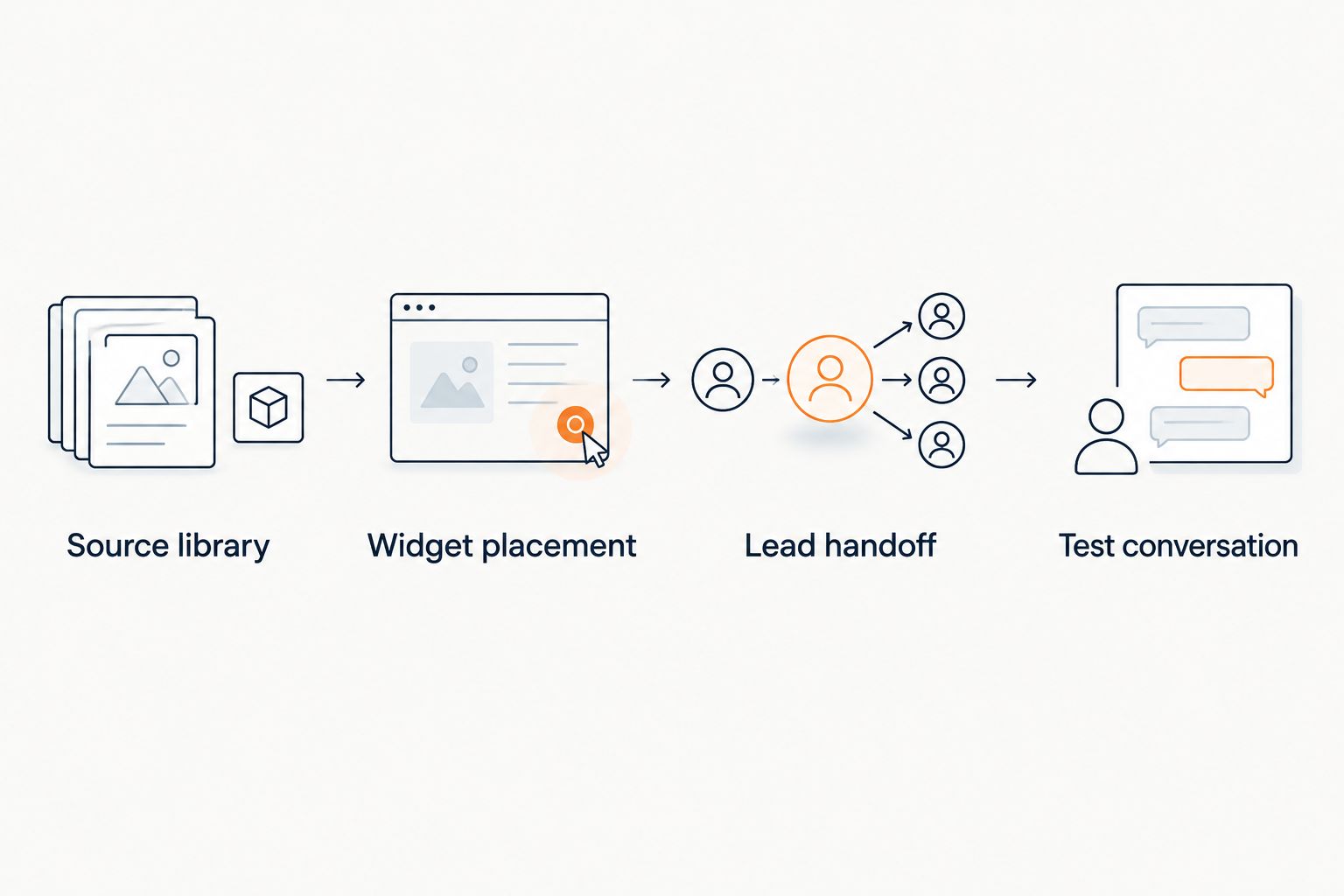
Use an external page when Whop placement is blocked
If the intended Whop page cannot run the widget, keep the same source and testing workflow but change the placement. Put HelpShelf on a visitor-facing page you control that accepts the required installation method. Then check whether you can direct prospective buyers from your Whop presence to that page using the options available to you.
This variant is useful only when the visitor can reach the external page before buying. It also has a trade-off: the question is answered away from the Whop page, so the route back to the offer needs to be clear. Test both directions as a visitor rather than assuming a link in your owner view behaves the same way publicly.
Do not describe this variant as a native Whop connection. The answer and lead capture happen on the page hosting the widget. Your Whop offer remains part of the buyer's path, but placement and access must be verified separately in 2026.
Troubleshooting
- The widget appears in your preview but not for a visitor. Open the intended page while signed out. Confirm that it is publicly accessible and that its customization method actually runs the widget, rather than displaying installation text.
- The chat answers with an old offer detail. Find the cited passage, remove or update the outdated source, and ask the same question again. Do not try to fix a source conflict by adding another contradictory document.
- The chat invents a discount or policy exception. Check whether a source states that term. If none does, remove unsupported wording from the source set and retest with a direct question requesting the exception. The acceptable response stays within the published terms.
- A test lead arrives without enough context. Check the lead-capture flow available in your setup and repeat the test with a specific question. The follow-up must tell you what the visitor asked, not merely that they opened chat.
- Prospects cannot find the external page. Start at the public Whop entry point and follow the same route a new buyer would use. If the page is not reachable there, fix that path before sharing it elsewhere.
Customize your workflow
Once the pre-purchase path works, separate questions that your published material can answer from questions that require you. A buyer asking what a course includes should receive the relevant cited source. A buyer requesting a personal guarantee should reach a handoff without being told that the guarantee exists.
Review the source library whenever you change your offer wording in 2026. Recheck a question tied to the changed passage, then repeat the refusal test for unsupported terms. If you also answer questions from existing members, decide which content belongs in that support use case before exposing it to prospective buyers. The pre-purchase test remains about information a visitor can see before purchase.
FAQ
How do I connect HelpShelf to Whop?
Prepare published offer sources in HelpShelf, check whether your intended Whop page supports the widget's installation method, and test the chat as a visitor. If that page cannot host the widget, use a page you control and verify that prospects can reach it.
Can I put the HelpShelf widget on every Whop page?
Do not assume every Whop page accepts widget code. Check the customization options for the exact page and test the result while signed out.
Can HelpShelf capture leads before someone buys on Whop?
HelpShelf supports lead capture, but the visitor must be able to reach its widget before purchasing. Test a sample inquiry from the public buyer path and verify that you receive usable follow-up context.
What content should I give HelpShelf for pre-sale questions?
Use current, published material that describes your offer and its terms. Remove conflicting or private material that a prospective buyer should not rely on.
What should the chat say when a buyer asks for an unpublished discount?
It should not invent a discount. A direct response is: I can only quote what's published about this offer; leave your question if you want a follow-up.
What if my Whop page cannot host a chat widget?
Place the widget on a visitor-facing page you control that supports it, then test the route from your Whop presence. Do not call that arrangement an on-page Whop widget.
How do I know the setup is ready to share?
Test a sourced question, an unsupported request, and a lead handoff from the visitor's entry point. The widget must be reachable before purchase, cite the right source, and avoid promises the source does not make.
One last thing
Ask the chat for a refund exception you have never published. If it supplies one, the pre-sale path is not ready, even if every routine answer looks right. A clear refusal protects the conversation from turning an unanswered question into a promise.