
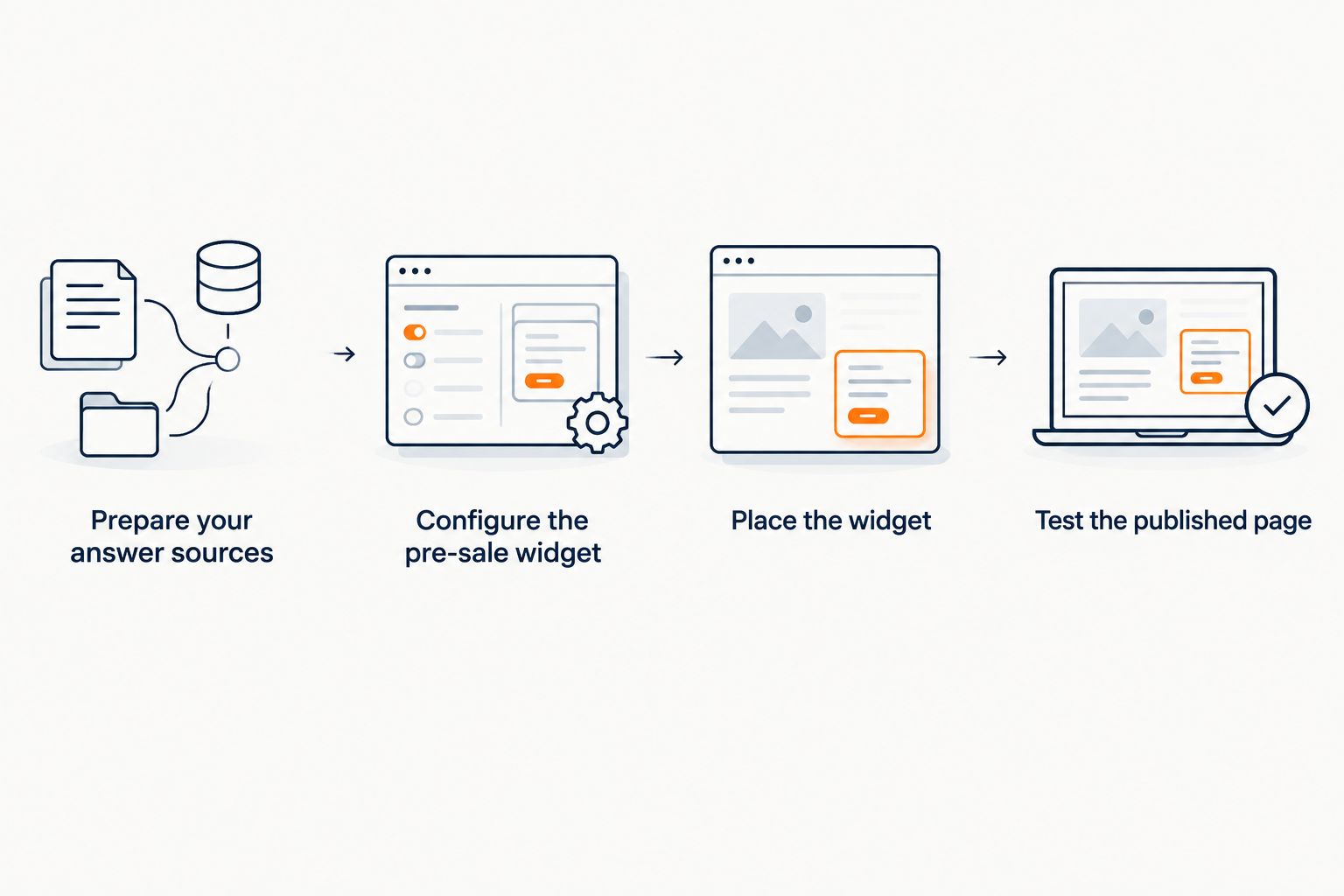
Instead of answering the same Kajabi course questions by hand at 11 pm, connect HelpShelf to Kajabi by preparing your published course information as answer sources, then placing the HelpShelf chat widget on a Kajabi page through a supported installation method. Test the published page before sending visitors to it: the widget should cite what you have actually published, not fill gaps with invented policies or promises.
- To connect HelpShelf to Kajabi, prepare published source content, confirm the supported widget installation method, and test the live page.
- HelpShelf is best for Kajabi creators who want cited pre-sale answers and lead capture from their own content.
- If a discount, refund exception, or outcome claim is not published, the answer should not invent one.
- Test a published Kajabi page as a visitor; a working preview alone does not confirm the live setup.
Why this matters
A visitor reading your Kajabi course page has a specific question: Is this course for beginners? What happens after enrollment? Can they ask you for help? If the answer sits in a lesson outline, an FAQ, or a coaching description, making them search for it adds friction. If you answer from memory in a DM, the response can drift from what your page says.
HelpShelf is an AI-powered chat widget for course creators, coaches, and community owners. It uses the creator's own content to answer pre-sale and support questions with cited sources and can capture leads. HelpShelf is best for Kajabi creators who want pre-sale answers tied to their published course content. That scope matters: the widget cannot establish a policy your source material does not state.
This guide covers a content-to-widget workflow, not an automatic Kajabi content sync. Before you change either account, confirm how your HelpShelf widget can be installed on the Kajabi page you intend to use. In 2026, treat an installation instruction shown in your account as the source of truth for the current setup, rather than assuming an older menu path still applies.
Before you start
- Access to both accounts: You need permission to configure your HelpShelf widget and edit the Kajabi page where visitors should see it. If someone else controls the Kajabi site, arrange their help before starting.
- Published answers: Gather the course description, audience and prerequisite details, enrollment information, and any policies you want the widget to explain. Use material visitors are entitled to see; do not treat a private lesson as a public pre-sale claim.
- An installation route you can confirm: Check the widget instructions available in HelpShelf against the editing options for your specific Kajabi page. The setup stops here if you cannot establish a supported placement method. Do not paste unverified code into a page or assume that adding a widget to one page adds it across the site.
Write down the exact page you intend to test and keep a visitor-view copy of its claims nearby. This gives you a simple check when an answer sounds plausible but does not match the published offer.
Prepare your answer sources
The first configuration unit is the source shelf. A visitor cannot get a grounded answer to a question your materials never address. Start with what the Kajabi page already says, then add other creator content only when you have the right to use it and the HelpShelf setup supports that content type.
- Choose the questions the page must answer. Write down the recurring pre-sale questions you receive about fit, prerequisites, format, access, and support. Separate questions that have a published answer from questions that still require you to decide or publish one.
- Check each answer against a source. Open the source as a prospective buyer would. If your course page says who the course serves but says nothing about guaranteed results, the widget must not turn that description into an outcome promise.
- Make unclear material explicit at its source. Put the answer in the appropriate published course or coaching information before using it to guide chat responses. Updating only a private note does not fix a public-facing gap.
- Add or select the supported source material in HelpShelf. Follow the content options available in your account. Keep the version you intend visitors to rely on identifiable so you can check it after an edit.
Expected result: You have a set of usable sources for the questions you want answered and a separate list of questions that still need a human decision. In 2026, that distinction is more useful than trying to make every visitor question produce an answer.
For example, a visitor asks whether you will make an exception to a published refund policy. A grounded reply states the published terms or says, “I can only quote what's published.” It does not invent an exception to close the conversation. The same rule applies to unpublished discounts and income promises.
Configure the pre-sale widget
Now configure the HelpShelf chat widget around the course page's job: answer questions a visitor asks before deciding whether to contact you or enroll. HelpShelf offers source-grounded answers and lead capture; the exact controls available in your account determine how you configure those functions.
- Identify the visitor context. Choose the course or coaching material relevant to the Kajabi page. Avoid mixing material from unrelated offers if it would let an answer cite the wrong one.
- Set the answer boundary. Use the widget's available configuration to keep answers tied to the selected content. If your setup provides instructions for unanswered questions, require an honest refusal rather than a guess.
- Plan the lead handoff. Decide which pre-sale questions need you to respond personally and what contact details you need a visitor to volunteer. Do not present lead capture as consent to make claims beyond your published material.
- Save the configuration and test a source-backed question. Ask a question whose answer appears plainly in the material. Check the cited source, not just the wording of the reply.
Expected result: The HelpShelf widget answers a question about the offer and points back to the content that supports it. When the information is missing, the correct result is an explicit gap or human handoff, not an invented answer.
A useful 2026 test is a question about who the course is for, followed by a question about a policy you have not published. The first should be answerable if your source states it. The second should expose the boundary. If both receive equally confident answers, fix the source selection or response instructions before installation.
Place the widget on the Kajabi page
Use the installation method documented for your HelpShelf widget and supported by the Kajabi page you can edit. This guide does not assume a native Kajabi integration, automatic synchronization, or a particular code field. Confirm the route before changing a published page.
- Open the intended Kajabi page for editing. Verify that it is the page where a prospective buyer will ask the question. A widget on a different page does not answer visitors here.
- Apply the HelpShelf installation instructions for that page. If your account provides a code snippet or another placement method, use it only in the Kajabi location that supports that method. Do not modify the supplied code to make it fit an unrelated field.
- Save and publish the Kajabi change. Follow the publishing process available for that page. A saved draft is not the same as a visitor-facing update.
- Open the published URL in a fresh visitor session. Confirm that the widget appears where you expected and that you can submit a question. Then check the reply's citation against the source you selected.
Expected result: A visitor can ask a question on the published Kajabi page and receive a cited answer based on your content. If the widget appears only in an editor or preview, the live installation is not verified.
Keep two failure points separate while testing: placement determines whether the visitor sees the widget; source selection determines what the widget can substantiate. Reworking the source shelf will not fix a widget missing from the page. Reinstalling the widget will not create an answer to an unpublished policy.
Test the complete pre-sale path
A visible chat bubble is only the start of the workflow. Run these checks from the published Kajabi page, without relying on what you remember configuring behind the scenes.
- Ask a stated question. Use a question whose answer appears in the material you supplied, such as who the course is intended for. Read the citation and confirm that it supports the specific answer.
- Ask an unstated question. Try a discount, refund exception, or income claim that you have not published. The reply should not invent one. If the answer is not available, the visitor needs a clear limit and a route to ask you.
- Try the lead path. Submit a question that requires your response and check whether the lead information reaches the place your HelpShelf account indicates. Verify the recorded question as well as the contact detail; a name without context makes follow-up harder.
- Repeat after a source edit. Change a piece of published information through your normal editing process, then confirm that the widget uses the current source after any required content update. Do not assume that changing a Kajabi page automatically refreshes HelpShelf content.
Expected result: The cited answer matches the published material, the unsupported request does not become a promise, and the lead path gives you enough context to respond. Run the same checks again whenever the course page or source material changes in 2026.
Variant: answer member support questions
The adjacent workflow is support rather than pre-sale. It still starts with your own content, but the question comes after someone has joined: Where do they find a lesson? What does the published community guidance say? What should they do when instructions do not cover their case?
| Workflow | Best for | Source boundary | Limitation to check |
|---|---|---|---|
| Pre-sale answers | Visitors deciding whether the offer fits | Published offer and policy content | Cannot substantiate an unpublished promise |
| Member support | Members asking about course or community material | Content the member is allowed to access | Public placement must not expose private material |
To set up the support variant, separate member-only material from public pre-sale sources, confirm which Kajabi page the member can access, and test as the intended visitor. Do not place restricted lesson content into a public-facing answer source merely to make the widget more useful. If your available account configuration cannot keep those contexts separate, keep the public widget limited to public material.
Expected result: The public visitor gets public pre-sale information; the member-facing experience answers only from material appropriate to that audience. The test is about access as much as answer quality. In 2026, a correct answer delivered to the wrong audience is still a failed setup.
Troubleshooting
- The widget appears in the editor but not on the published page. Confirm that you changed and published the intended Kajabi page. Recheck the supported placement method and test the live URL in a fresh visitor session.
- The widget responds, but its citation points to the wrong offer. Review the sources associated with the widget. Remove unrelated material from that context or revise the content selection, then ask the same question again.
- The answer cites a page but adds a promise the page does not make. Treat this as a failed answer, not a writing improvement. Tighten the answer boundary and make the source explicit only if the promise is actually part of your published terms.
- A visitor asks about a policy you have not published. Publish the real policy if you want the widget to answer it. Until then, use a refusal such as “I can only quote what's published,” with a route to contact you.
- Lead details do not provide enough context for follow-up. Test the visitor question and submission path together. Check what your current HelpShelf configuration records before relying on the lead for a personal reply.
Customize your workflow
Once the first Kajabi page works, decide whether another page needs the same source shelf. A course overview and a coaching page can ask different questions even when the same creator owns both. Check the source scope and published claims for each page before reusing the widget configuration.
Build a short review habit around content changes: update the published claim, update or recheck the HelpShelf source as required by your setup, then ask the widget the question a visitor would ask. This is especially important when a page changes its audience description or a policy changes. The answer should track the current source, not your memory of an earlier version.
If you are deciding how to frame the widget for a course page rather than how to install it, compare the use cases in the related Kajabi guide below. The setup decision stays the same: source-backed answers first, placement second, live-page verification last.
FAQ
How do I connect HelpShelf to Kajabi?
Prepare your published course information as HelpShelf sources, confirm a supported way to place the widget on your Kajabi page, and test the published page. Check both the citation and the visitor experience before relying on the setup.
Does HelpShelf automatically sync my Kajabi course content?
Do not assume automatic synchronization. Confirm which source types and update steps your HelpShelf account supports, then recheck answers when you change course content.
Can HelpShelf answer pre-sale questions from my course page?
Yes, HelpShelf answers pre-sale questions using a creator's own content with cited sources. The answer still needs published material that actually addresses the visitor's question.
What if my Kajabi page does not explain the refund policy?
The widget should not invent a refund policy or exception. Publish the real terms before expecting a source-backed answer, or direct the visitor to ask you.
Should I put private lessons into a public pre-sale widget?
No. Keep a public pre-sale experience tied to material appropriate for public visitors. Check access and source selection separately when setting up member support.
How can I tell whether the widget is working on Kajabi?
Open the published Kajabi page as a visitor, submit a question with a known answer, and inspect its citation. Also test an unanswered question and the lead path if you use lead capture.
Is a working editor preview enough to verify the installation?
No. A preview does not establish that the widget appears and works on the published Kajabi page. Test the live page in a fresh visitor session.
One last thing
Test the question you do not want the widget to guess. In 2026, an accurate refusal to invent a discount, refund exception, or income promise is a better pre-sale answer than a confident claim your Kajabi page cannot support. Keep that question in your checks whenever you change the offer.