
Instead of answering the same Skool member questions in DMs, prepare approved community content for HelpShelf to use as cited sources, then make its chat widget available at a visitor entry point you control. That is a content-and-visitor workflow, not a verified native Skool integration: confirm the current source and widget setup methods before you change your community.
- To connect HelpShelf to Skool, start with approved Skool content as sources; do not assume a native integration.
- HelpShelf is best for creators who want cited answers to recurring course and community questions.
- Check what the widget can answer, refuse and hand off before directing members to it.
- Measure repeat questions and human handoffs; publishing a widget alone does not prove fewer support tickets.
Why this matters
A member asks where a lesson explains a concept. Another asks whether their membership includes a coaching call. The first question needs the right passage; the second needs a current, published answer. If neither is available, an answer that sounds plausible is worse than a handoff.
HelpShelf is best for Skool community owners who want cited answers from their own published content, with a human handoff when that content does not answer the question. The HelpShelf chat widget uses a creator’s content to answer pre-sale and support questions and capture leads. Its advantage is the source-backed answer. Its limit is equally important: content that is missing, outdated or not approved for the visitor cannot support an answer.
In 2026, treat connect HelpShelf to Skool as two decisions: which community material can support answers, and where visitors can reach the widget. Do not treat a content connection as proof that HelpShelf installs inside Skool, reads private posts automatically or keeps sources synchronized. None of those capabilities is established by the information provided here.
Before you start
- Gather approved material. Pick the course explanations, community guidance and published policies that you are allowed to use for the intended audience. Keep a record of where each answer comes from.
- Confirm access and placement. You need access to the relevant Skool content and to a visitor page you control if that is where you plan to offer the widget. Check HelpShelf’s current instructions for accepted source formats and widget installation before preparing files or editing a page.
- Separate audiences before setup. A prospective buyer must not receive a member-only answer simply because both questions concern the same community. If you cannot establish who can see a source, leave that source out of the pre-sale workflow.
That last point is the mid-setup trap. A source can be accurate and still be wrong for the person asking. In 2026, write down the permitted audience beside each source before you test answers, not after a visitor sees one.
Prepare approved sources
- Choose 3 recurring questions. Use actual questions you already receive, not imagined objections. Good candidates are questions with stable, published answers: where to find a lesson, what a published module covers or how to follow an existing community instruction.
- Find the answering passage for each question. Copy or identify the exact approved material you want HelpShelf to cite. If a question has no published answer, mark it for human response instead of drafting a new policy inside the widget.
- Mark the audience for every passage. Distinguish material suitable for prospective visitors from material intended only for members. Keep private conversations and personal details out of a public-facing source set unless you have a clear right and reason to use them.
- Check the current source setup method. Follow HelpShelf’s published instructions for supplying content. No source-import field, Skool authorization button or automatic sync control is verified here, so do not build your process around one.
- Record changes you make to the underlying content. When a published answer changes, review the corresponding HelpShelf source and retest the question. A citation points to the material used for an answer; it does not make old material current.
Expected result: you have a small set of approved passages, each tied to a real question and a defined audience. You can explain why each passage belongs in the workflow without relying on an assumed Skool-to-HelpShelf sync.
Check answers and refusals
- Ask each of the 3 questions as a visitor would. Check whether the answer addresses the question and whether its citation supports the specific claim. A citation to the right general topic is not enough if the cited passage does not contain the answer.
- Test 2 unsupported questions. Ask about a discount that is not published and a refund exception that is not documented. The acceptable response is a refusal or handoff, not a guessed concession. A plain model for the refusal is: I can only quote what’s published.
- Test a question with competing sources. If two approved passages disagree, correct the source material or remove the older passage before inviting visitors to rely on the answer. Do not ask the widget to choose a policy for you.
- Repeat the checks from the intended audience’s position. A pre-sale answer must rely on material appropriate for prospects. A member support answer can use member material only where the visitor path and source access permit it.
Expected result: HelpShelf answers supported questions with relevant citations and does not invent an answer when the approved material is silent. This is the point to fix sources, not to add a broader prompt that encourages confident guesses.
The sequence matters because a source-grounded answer has three separate checks: the material is approved, the passage answers the question, and the visitor is allowed to see it.
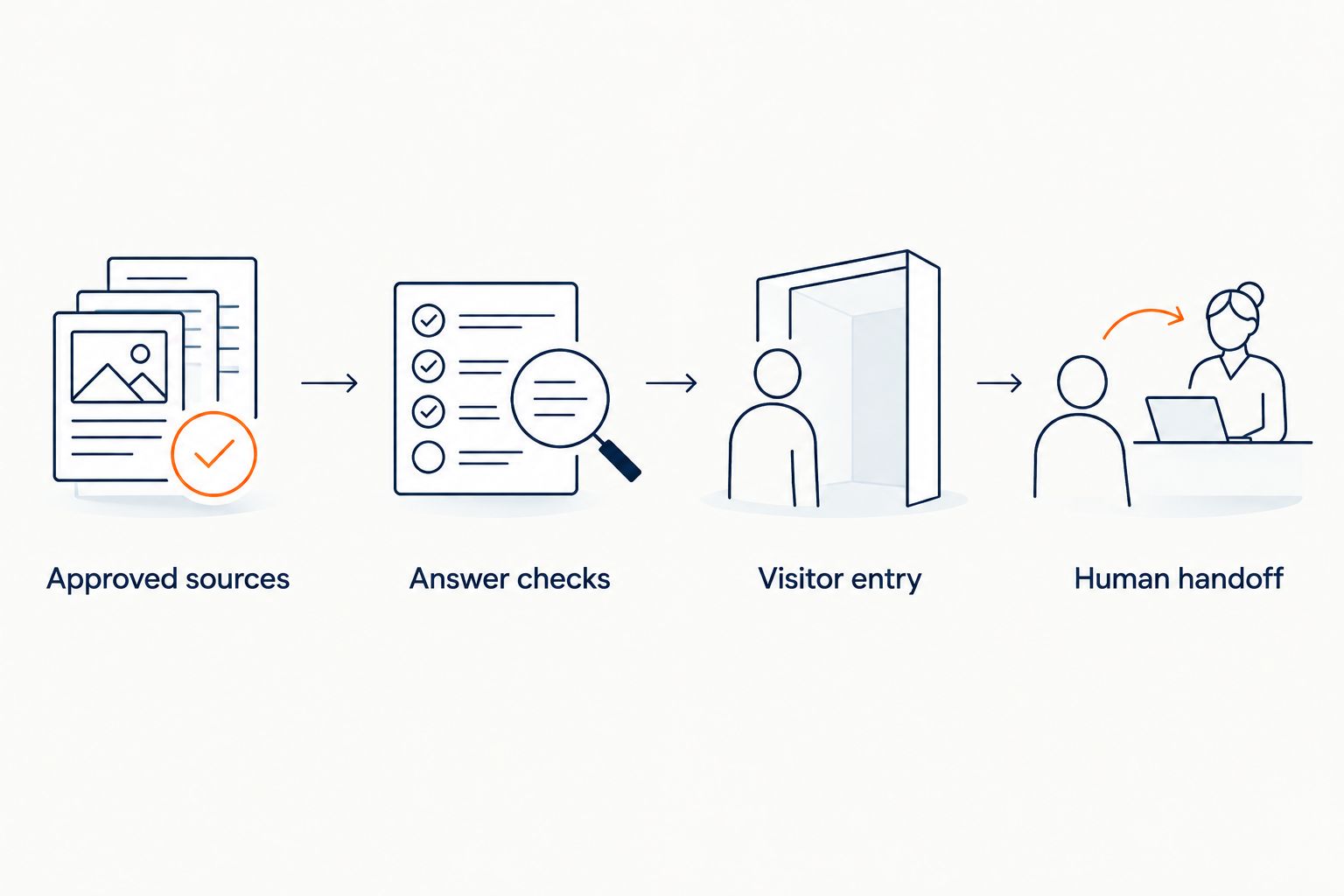
Set visitor entry and human handoff
- Choose 1 visitor entry point. Use a page you control where the intended visitor can reach the HelpShelf widget, subject to HelpShelf’s current installation instructions. Do not assume you can place third-party code inside Skool.
- Decide how Skool members will find that entry point. If your community settings permit you to direct members to the page, write a short instruction that names the kinds of questions the widget can answer. If they do not, keep the widget on the page you control rather than claiming it lives inside Skool.
- Define the handoff boundary. Route questions about undocumented exceptions, account-specific circumstances and disputed answers to a person. Lead capture can support follow-up, but it is not a substitute for answering a member’s support question.
- Test the visitor path. Open the entry point as the intended visitor, ask a supported question and an unsupported one, and check the citation and handoff behavior you can observe. Do not count a test as complete solely because a widget appears on the page.
Expected result: a visitor can reach the widget through a permitted path, get an answer grounded in approved content or reach the defined human route. The path does not depend on an unverified native Skool installation.
Answer pre-sale questions as a separate variant
The support workflow begins with a member who already needs help. The adjacent workflow begins at 11 p.m. with a prospective member asking whether a course or community covers a topic. By the time you see the message, they may have moved on. HelpShelf can answer pre-sale questions from the creator’s content and capture leads, but the source set must fit a prospect rather than an enrolled member.
Prepare prospect-safe descriptions and published terms separately from member-only lessons. Then test questions such as Does the published course description cover this topic? and Is a discount available? The first needs a cited passage. If no discount is published, the second needs a refusal or human follow-up, not an invented offer. Apply the same rule to refund exceptions and income promises.
| Visitor entry | Best for | What it gains | What it cannot assume |
|---|---|---|---|
| Member support path | Best for recurring questions from existing members | Cited answers from approved member material | Automatic access to private Skool content or fewer tickets without measurement |
| Pre-sale path | Best for prospective members with questions about published content | Cited answers and an opportunity to capture a lead | Access to member-only material or permission to invent terms |
Use the pre-sale path only when you can keep its sources appropriate for prospects. Its benefit is that an unanswered question can receive a sourced response or follow-up route; its limitation is that no published answer means no defensible instant answer. In 2026, that boundary matters more than making every question appear answerable.
Troubleshooting
- The answer cites a passage but misses the question. Read the cited text. If it covers a related topic rather than the requested detail, replace or revise the source material, then ask the same question again.
- The widget gives an old answer. Find the passage supporting it and check whether your published content changed. Correct the approved material and use HelpShelf’s current source-update method; do not assume a Skool edit updates the widget automatically.
- A prospect receives member-only detail. Stop using that source in the prospect-facing workflow. Recheck the audience assigned to every passage and retest from the prospect’s entry point before restoring access.
- The widget will not appear where you expected in Skool. Check Skool’s current options for that location and HelpShelf’s current installation requirements. Use a permitted page you control if you cannot verify that the Skool location supports the widget.
- Human follow-up receives questions the content already answers. Compare each handoff with its approved passage. Fix missing context or an unclear source first; keep the handoff for questions the material cannot settle.
Do not use a lower handoff count as proof that members got better support. Review the questions that stopped reaching a person. If the widget answered them with relevant citations, that is useful evidence; if visitors abandoned the path, the count says something different.
Customize your workflow
Once the small question set works, expand by topic rather than adding everything at once. Group recurring lesson-location questions, published community instructions and pre-sale questions into distinct review queues. For each new topic, keep the same test: approved source, permitted audience, supported answer, refusal and human route.
Set a review habit for 2026 content changes. When you revise a course explanation or published policy, identify the questions it answered and retest those questions in HelpShelf. An owner can track the change without assuming that the Skool material and the widget stay aligned on their own.
To assess whether the workflow cuts support tickets, define what counts as a ticket before changing the visitor path. Compare the same categories of incoming member questions before and after, and inspect sampled widget answers and handoffs. Do not attribute a drop to HelpShelf unless the questions were answered correctly through the new path; no ticket-reduction figure is established here.
Keep a separate record of unsupported requests. A request for an unpublished exception is not a content gap to fill with an invented answer. It is a decision for the creator, followed by a source update only if the creator publishes a rule that visitors are allowed to see.
FAQ
How do I connect HelpShelf to Skool?
Prepare approved Skool-related content as HelpShelf sources and give visitors a permitted path to its chat widget. Confirm current source and installation methods; a native Skool integration is not established here.
Can I install HelpShelf directly inside Skool?
A direct installation inside Skool is not verified here. Check the current options for the specific Skool location and HelpShelf’s installation instructions before promising an in-community widget.
Will HelpShelf automatically read my private Skool posts?
Automatic access to private Skool posts is not established here. Select only material you are permitted to use, and check the current source setup method before relying on a post as an answer source.
Can HelpShelf answer questions from prospective Skool members?
HelpShelf answers pre-sale questions from a creator’s content and captures leads. Use prospect-appropriate published material, and refuse or hand off questions that the material does not answer.
What should happen when a source does not mention a refund exception?
The widget should not invent a refund exception. Direct the visitor to a human decision or quote only the published rule that applies.
How do I check whether HelpShelf cuts support tickets?
Compare the same categories of member questions before and after the visitor path changes, then inspect answers and handoffs. A lower ticket count alone does not show whether members received correct answers.
What if a HelpShelf citation points to outdated content?
Correct the approved source and retest the affected question. Do not assume that changing a Skool post automatically updates the content HelpShelf uses.
One last thing
The useful first test in 2026 is not whether HelpShelf answers a question it knows. Ask about a discount or exception that is nowhere in the approved material. If the widget refuses and hands the question to a person, you have protected the boundary that makes its cited answers useful.